
Two-Factor Authentication (2FA) adds a second check when users open a Data Room. As well as logging in, every user, including admins, must enter a verification code sent to their email or phone.
Who can turn on 2FA?
Only users with Admin or the Manage Users & Settings permission can turn Two-Factor Authentication on or off.
Turn 2FA on or off
- Inside the Data Room, click the gear icon (Manage Users & Settings) in the left side panel, and select Settings.
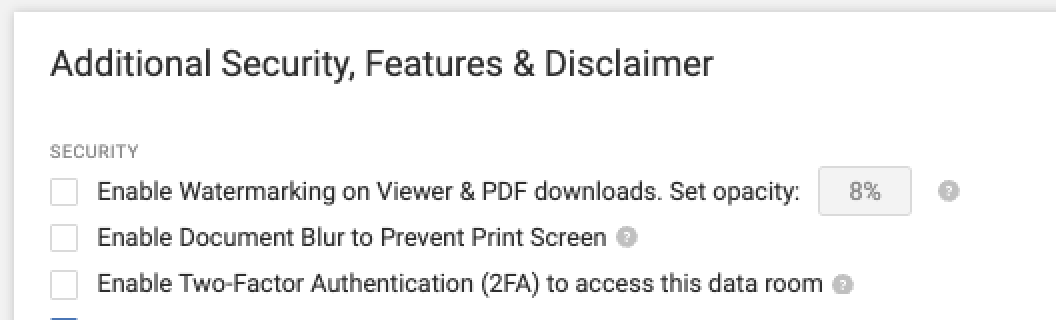
- Open Additional Security, Features & Disclaimer.
- Under Security, select Enable Two-Factor Authentication (2FA) to access this data room.
- Click Save Changes.
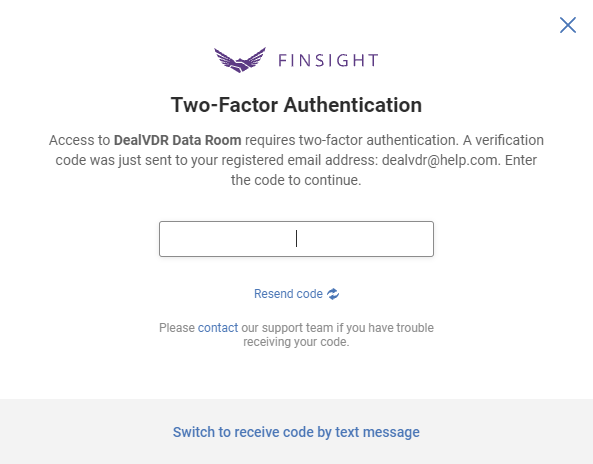
To check that it worked, log out, log back in and open the Data Room. The Two-Factor Authentication window appears and asks for a code.
Note: SFTP doesn't work if two-factor authentication is turned on. Learn more in SFTP.
Enter a verification code
When a user opens a Data Room with 2FA turned on, the Two-Factor Authentication window appears and the Data Room sends a code.
- Check your email for the 6-digit code. If you turned on text message codes in your account, check your phone instead.
- Enter the code in the window.
The Data Room opens as soon as the code is entered. If the code doesn't arrive, click Resend code.
To get the code another way, click Switch to receive code by text message or Switch to receive code by email at the bottom of the window. If you haven't added a mobile number yet, the link takes you to your account to add one.
How often do users need to enter a code?
Once per login session. After entering a code, a user can open any other Data Room with 2FA turned on without entering a new one. They get a new code the next time they log in.