
The File Index is the numbering/indexing associated with the files and folders of a Data Room, and it keeps the Data Room organized. It allows users to cross-reference files by referencing the index number of the file or folder in the Data Room.
Files and folders can be organized by: Date Uploaded, Alphabetically, or not numbered at all. When indexing is on, you can also remove the index from top-level folders, so each one starts its own numbering from 1.
How the index works
Folders and files are indexed separately. Inside every folder, subfolders are listed first, then files.
- A dot (.) separates folder index numbers. Each folder adds its own number after its parent folder's index number.
- A dash (-) comes before a file's index number. The part before the dash shows which folder the file is in.
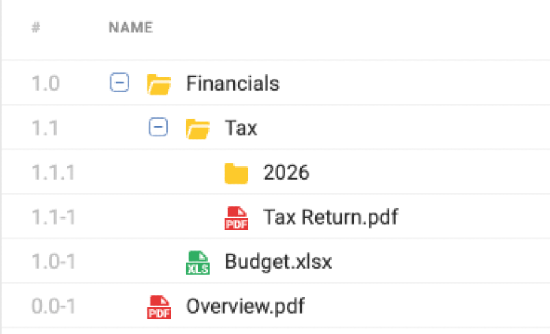
Top-level folders end in .0, so 1.0 is the top-level folder and 1.1 is the first folder inside it. Files that aren't in any folder start with 0.0.
Indexing options
| Option | What it does |
|---|---|
| Do not display index numbers on files and folders | Turns indexing off. No index numbers appear. |
| Display and index files and folders alphabetically | Indexes files and folders in A–Z order. |
| Display and index files and folders by date uploaded | Indexes files and folders in the order they were uploaded or created. |
| Remove index from top level parent folders | Hides the index number on folders at the top of the Data Room. Indexing restarts inside each of them. Available only when indexing is on. |
Note: If your Data Room has a staging area, it has its own indexing settings. Select the Staging tab to set them separately. Index numbers in the staging area start with S, for example S1.0.
What "Remove index from top level parent folders" changes
Without this option, indexing runs through the whole Data Room. With it, top-level folders have no index number, and the index inside each one starts from 1.0.
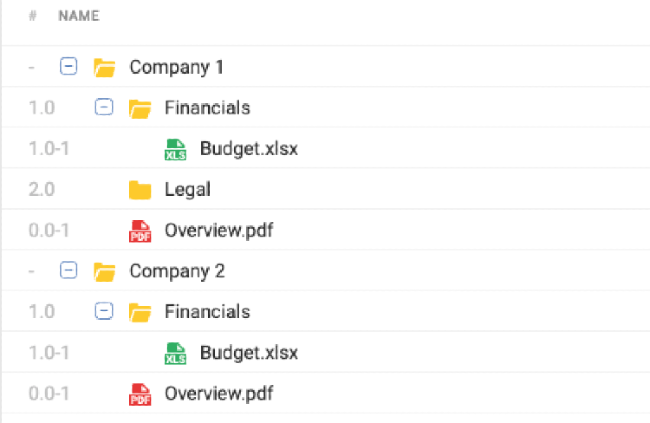
Use this option when you share only some top-level folders with a user. Their index starts at 1.0 in every folder they can open, so the index numbers don't point to folders they can't see.
Files saved directly in the Data Room, outside any folder, keep their index numbers.
Search by index number finds items by the index number users actually see.
How to enable or disable indexing
Only users with Admin or the Manage Users & Settings permission can enable, disable, or edit indexing in a Data Room. There are two ways to change the File Index:
- On the Settings page
- On the File Index page in the Data Room
Important: Changing the File Index removes all custom indexing. Any pinned files and folders lose their pinned position, and you need to pin them again. Everyone in the Data Room sees the new index numbers.
On the Settings page
1. Go to the Manage Users & Settings tab.
2. Select Settings.
3. Open Advanced Settings.
4. Select your preferred File Index option and press Save Changes.
The new index numbers appear on files and folders in the Data Room.
On the File Index page
1. Log in to your Data Room.
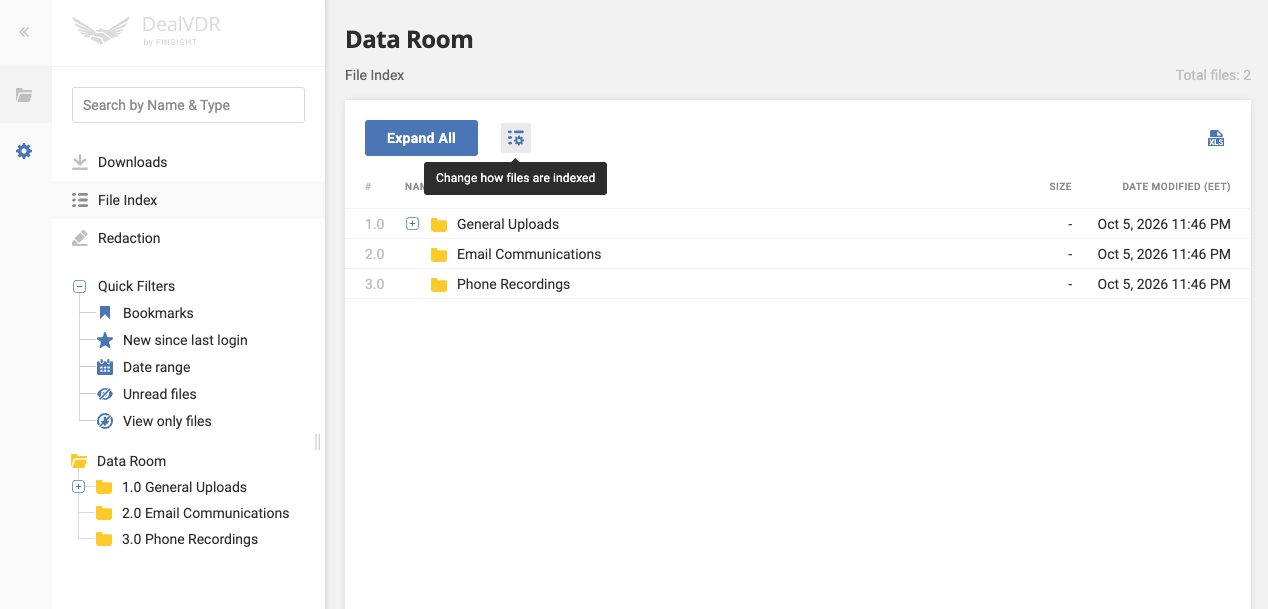
2. In the left-hand panel, select File Index.
3. Click the second icon (three lines with a gear). The Change File Index window opens.
4. Select the preferred File Index option and confirm your understanding that any changes made will undo prior indexing.
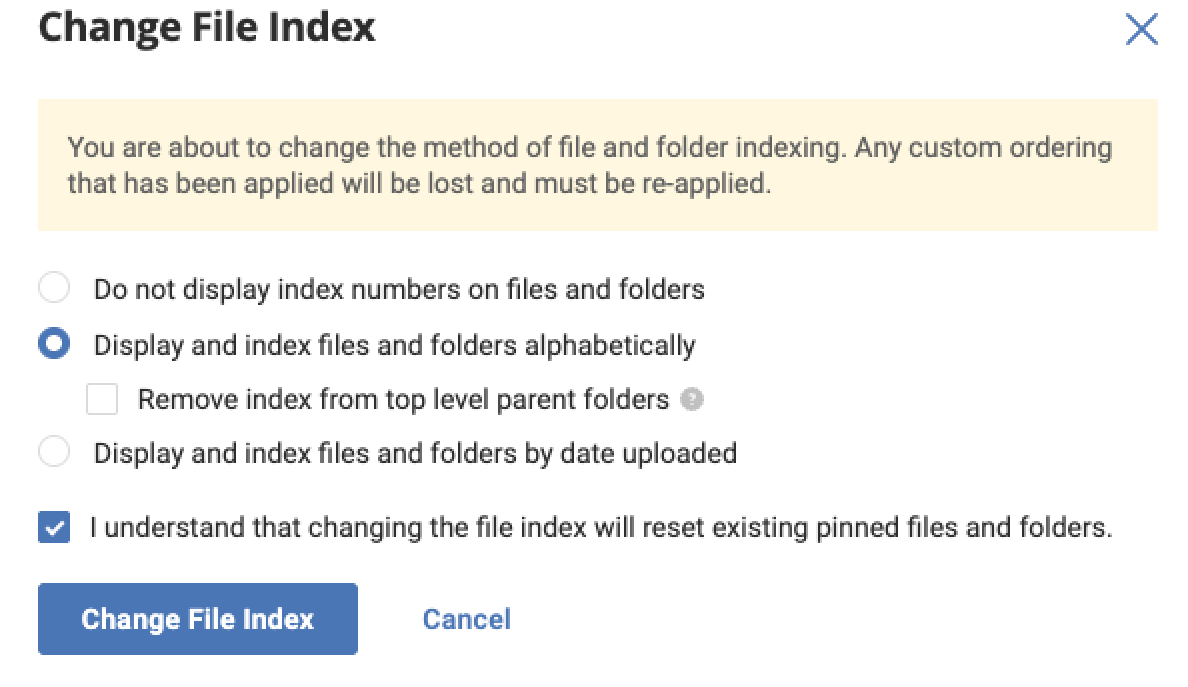
5. Once the changes look good, select Change File Index. The data room will now reflect the preferred option.
Pinning Files & Folders
- Pin a file or folder to a set index number: give a file or folder a custom index number.